


Last Updated: October 30, 2026
Quick Summary
A furnished rental internet setup needs at least 100 Mbps download and 20 Mbps upload per remote worker, with latency under 30 ms for video calls. Upload speed matters most, since residential plans are asymmetric and a 300 Mbps plan may offer only 10 Mbps up. Ask the host for a dated speed test from the actual workspace desk before booking.
- WorkTime reports 22.6% of U.S. workers teleworked in March 2026, making connectivity essential.
- Latency under 30 ms feels instant, while above 100 ms causes conversation to overlap.
- Request a speed test screenshot taken within the last 30 days from the workspace desk.
- Run your arrival test during business hours with your normal workload active.
- Pack a mobile hotspot and test it on a video call before you need it.
Table of Contents
- What Internet Speed Do You Need in a Furnished Rental?
- Internet Speed for Remote Work: Download, Upload, Latency, and Jitter
- How to Test Wi-Fi Speed in a Rental Before and After Booking
- Fiber, Cable, Fixed Wireless, and Satellite Compared
- Your Remote Work Internet Checklist for Rental Bookings
- Backup Internet for Remote Work: What to Pack and Set Up
- Book a Furnished Rental Built for Remote Work
- 经常问的问题
What Internet Speed Do You Need in a Furnished Rental?
The short answer: at least 100 Mbps download and 20 Mbps upload per remote worker, with latency under 30 ms for video calls. According to TestMySpeed’s 2026 guidance on internet speeds for remote workers, those speeds comfortably handle HD video conferencing, cloud file transfers, and everyday business applications.
That number matters more than most booking details. Remote work remains a substantial share of the workforce: WorkTime’s 2026 analysis of Bureau of Labor Statistics data reports that 22.6% of U.S. workers teleworked in March 2026.
At Florida HomeShares, we provide high-speed Wi-Fi and a dedicated workspace in every property, so you can focus on your work during your stay.
Below, we break down how much speed each task needs, how to verify a rental’s connection before you book, and what to do when the Wi-Fi disappoints.
Matching Speeds to Work Tasks
Different workloads demand different ceilings. Email and web browsing run fine on far less bandwidth than a four-person video standup.
| Task | Download Needed | Upload Needed | Notes |
|---|---|---|---|
| Email, browsing, chat | 5-10 Mbps | 1-5 Mbps | Basic tasks tolerate slower plans |
| HD video calls (1:1) | 10-15 Mbps | 3-5 Mbps | Latency matters more than raw speed |
| Group video conferencing | 15-25 Mbps | 5-10 Mbps | Scales with participant count |
| Large file uploads, cloud backup | 25+ Mbps | 20+ Mbps | Upload-heavy work needs headroom |
| Two workers plus streaming | 100+ Mbps | 20+ Mbps | Shared connection divides bandwidth |
A common mistake is checking only download speed. Upload carries your camera feed, screen shares, and file transfers, and it is usually the first thing to buckle.
Why Upload Speed Matters More Than You Think
Upload speed is the rate at which your device sends data out: your voice on a call, your shared screen, the design file headed to a client. Most residential plans are asymmetric, with upload running a fraction of download.
For remote work, that asymmetry bites. A plan advertising 300 Mbps down may offer only 10 Mbps up, which is tight for simultaneous calls across multiple users.
Internet Speed for Remote Work: Download, Upload, Latency, and Jitter
Raw speed is only half the story. Latency, jitter, and packet loss determine whether a call feels smooth or sounds like a walkie-talkie in a tunnel.
Latency is the round-trip time for data to travel to a server and back, measured in milliseconds.
Jitter is the variation in latency between packets. High jitter produces robotic, choppy speech even on a fast connection.
Packet loss is the percentage of data that never arrives.
How to Test Wi-Fi Speed in a Rental Before and After Booking
Most remote-work speed guides tell you what connection to buy. A furnished rental is different: you inherit someone else’s connection, router placement, and plan terms, and you usually cannot change them mid-stay.
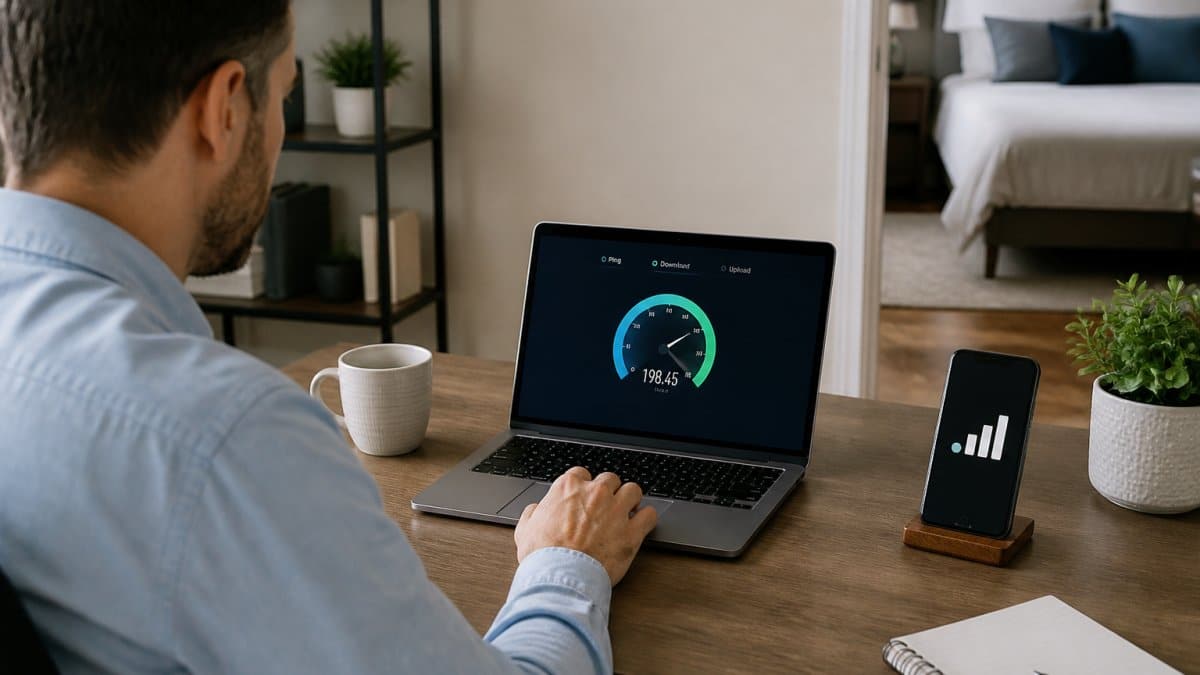
Before Booking: What Evidence to Request
Ask the host for a recent wired speed test from the room you will actually work in, not the living room, not the router closet. A screenshot is only useful if it shows the test date, the provider, and the plan name. Request these five items in writing through the booking platform’s messaging system so the record is preserved:
- A speed test screenshot taken within the last 30 days, run from the workspace desk with an Ethernet cable if one is available
- The internet service provider and plan name (for example, a fiber plan versus a cable plan with a stated upload tier)
- The advertised download and upload speeds, and whether the plan is symmetrical
A host who cannot produce a dated test from the workspace is one to question before you book.
How to Read the Test Report
A single download number hides the metrics that break calls. Read the full report:
- Download and upload, compare against the per-worker targets in the task table above, not against the plan’s headline number
- Latency (ping), under 30 ms is comfortable for video; above 100 ms causes talk-over
- Jitter, variation in latency; high jitter produces robotic audio even on a fast line
A speed test taken next to the router proves nothing about signal strength at the far bedroom desk. Ask for a test from the workspace, and if the host cannot provide one, plan to run your own on arrival before you unpack.
On Arrival: Test Where You Will Actually Sit
Run a test at the desk during business hours, ideally on the first weekday morning of your stay. Peak-hour congestion on cable and fixed wireless can cut real-world speeds well below the advertised figure.
Run the test twice: once with only your laptop connected, and once with your normal workload running (video call open, cloud sync active). The second number is the one that matters.
If the Connection Underperforms: A Remedies Sequence
Document first, then escalate. A common pattern that works:
- Capture evidence. Screenshot the speed test with a timestamp, and note the date, time, and which room you tested from.
- Restart the router once if the host permits it, then re-test. Rule out a transient outage before escalating.
- Message the host through the platform with the screenshot and a specific ask: a repair visit, a plan upgrade, or a temporary hotspot loan.
- Escalate to the platform if the host does not respond within a reasonable window, citing the listing’s connectivity claims and your documented test results.
- Switch to your backup connection for work-critical calls while the issue is resolved, do not wait on a fix during a client meeting.
Keep the documentation trail. Platforms generally weigh contemporaneous screenshots and message records more heavily than a complaint filed after checkout.
Questions to Ask Before You Book
- Can you send a dated speed test from the workspace desk?
- Which provider and plan is the property on, and is upload symmetrical?
- Is there a data cap or throttling policy I should know about?
For a fuller list of what a well-equipped rental should include beyond connectivity, see our guide to what a furnished rental should include.
Fiber, Cable, Fixed Wireless, and Satellite Compared
Connection type shapes reliability as much as raw speed, and in a furnished rental it also shapes what you can realistically fix during a short stay. Compare the underlying technology, then compare the rental’s actual setup.
| Connection | Typical Strength | Main Weakness | Rental Trade-off | Best For |
|---|---|---|---|---|
| Fiber | Symmetrical download and upload, low latency | Limited availability; install lead times | Best ceiling, but router placement still determines desk performance | Upload-heavy remote work, multi-worker households |
| Cable | Fast download, wide coverage | Slower upload, shared neighborhood bandwidth that sags at peak hours | Common in rentals; verify upload tier and peak-hour performance | General remote work, single heavy user |
| 5G home / fixed wireless | Quick setup, no wiring | Signal-dependent stability; can vary by room and weather | Often the only option in some buildings; test at the desk, not the window | Backup or short stays |
| Satellite | Reaches rural areas | High latency, data caps, weather sensitivity | High latency punishes video calls; confirm cap terms before booking | Last-resort connectivity |
What the Technology Means for a Renter
Fiber delivers symmetrical upload and download with low latency, the strongest base for video presentations and large cloud uploads.
Cable offers fast download and broad coverage, but upload typically runs at a fraction of download, and neighborhood bandwidth is shared, so speeds can sag during evening peak hours.
5G home and fixed wireless can be strong in good coverage but vary with signal strength, building materials, and even weather.
Satellite reaches rural gaps but carries high latency that punishes real-time calls, and many plans impose data caps.
Service Terms That Change the Real-World Speed
Advertised speed is a ceiling, not a guarantee. Before booking, clarify these terms, because they differ by provider and plan and you usually cannot change them mid-stay:
- Shared versus dedicated, residential plans are typically shared, so neighbors’ usage can affect peak-hour performance
- Data caps and overage fees, some plans throttle after a usage threshold; confirm the threshold and the consequence
- Throttling and prioritization, some providers deprioritize certain traffic or heavy users during congestion
If your work depends on upload-heavy tasks, ask the host for the plan’s upload tier in writing. A cable plan advertising 300 Mbps down may offer only 10 Mbps up, which is tight for simultaneous calls across multiple users.
A Task-Based Speed Calculator for Remote Workers
One-size-fits-all recommendations undershoot multi-worker households and overshoot solo light users. Build a target from your actual workload instead:
- Count simultaneous video calls. Add roughly 10-15 Mbps download and 3-5 Mbps upload for each HD 1:1 call; group calls scale with participant count.
- Add cloud uploads and backups. Large file transfers and cloud backup are upload-heavy; add 20+ Mbps upload if you move big files during the workday.
- Add everyday devices. Email, browsing, and chat are light, but streaming, smart-home devices, and background sync add up.
- Add headroom. Aim for roughly 20-30% above your calculated total so peak-hour congestion does not push you below the line.
- Check latency separately. No amount of download speed fixes a 150 ms ping; confirm latency under 30 ms for calls.
A solo worker on email and one daily video call may be fine on a modest cable plan. Two workers each running video calls plus cloud uploads need a materially higher upload tier, which is why the per-worker targets above matter more than a single headline number.
Guidance varies on minimums. Cox Business’s internet speed recommendations for small teams suggests 25 Mbps down and 5 Mbps up supports basic email and browsing, while Glo Fiber’s residential speed guidance puts everyday use at 25-50 Mbps down and 10-20 Mbps up. Those figures fit light use; remote professionals should plan higher, and renters should verify the actual plan rather than assume the listing’s “high-speed” claim reflects these tiers.
Your Remote Work Internet Checklist for Rental Bookings
Use this checklist before you sign a short-term lease. It turns a vague “high-speed Wi-Fi” claim into verifiable facts.
- Host provides a speed test screenshot from the actual workspace
- Download confirmed at 100 Mbps or higher per worker
- Upload confirmed at 20 Mbps or higher per worker
For a fuller list of what a well-equipped rental should include beyond connectivity, see our guide to what a furnished rental should include.
Backup Internet for Remote Work: What to Pack and Set Up
Every remote worker needs a fallback. Pack a mobile hotspot or enable hotspot tethering on your phone, and confirm your carrier covers the property’s area before you arrive.
Test the backup before you need it. Join a video call over the hotspot for five minutes and watch for dropped frames.
A backup internet plan for remote work is cheap insurance. The alternative is rescheduling a client meeting because a router rebooted at the wrong moment.
Book a Furnished Rental Built for Remote Work
Connectivity is where good rentals separate from great ones.
Florida HomeShares builds for that requirement. Every property includes a dedicated workspace and high-speed Wi-Fi. Guests who book direct avoid third-party fees, and our VIP concierge and transportation packages handle the logistics around your assignment.
If you want to compare remote-work-ready options before committing, start with our corporate housing with workspace guide.
经常问的问题
What internet speed do I need to work remotely from a furnished rental?
For most remote workers, 100 Mbps download and 20 Mbps upload is a safe baseline, according to TestMySpeed’s 2026 guidance. Cox Business suggests email and web browsing can run on as little as 25 Mbps down and 5 Mbps up, while Glo Fiber says 25-50 Mbps down and 10-20 Mbps up usually gets the job done. If you run video calls, cloud file uploads, or share the connection with family, aim higher: 100 Mbps down and 20 Mbps up or more per household.
Is 100 Mbps enough for remote work and video calls?
Yes, for a single worker. TestMySpeed’s 2026 remote-work guidance calls 100 Mbps download and 20 Mbps upload sufficient for HD video. The catch is the shared connection: a furnished rental with multiple devices, streaming TVs, and several video calls at once can saturate 100 Mbps during peak hours. Check how many people and devices share the plan, and confirm upload speed separately, since video calls depend on upload more than download.
What upload speed is best for video conferencing?
Plan for at least 10-20 Mbps upload per active video call. Glo Fiber’s guidance puts 10-20 Mbps upload in the workable range for typical tasks, and TestMySpeed recommends 20 Mbps upload for remote workers overall. Upload speed drives your camera feed, screen shares, and cloud file uploads. If two people in the rental take calls at the same time, double that figure and confirm the plan is not capped on upload.
How can I check a rental’s Wi-Fi speed before booking?
Ask the host for a recent speed test screenshot showing download, upload, and ping, plus the provider name and plan tier. Request the router location and whether Ethernet is available at the desk. Before booking a longer stay, test the connection yourself on arrival with a browser-based speed test and compare it to the host’s numbers. A host who cannot supply a speed test or provider name is a warning sign for internet-dependent stays.
Is Wi-Fi reliable enough for remote work, or should I bring a hotspot?
Wi-Fi works for most remote work, but a backup matters for work-critical calls. Pack an unlocked phone or mobile hotspot with a data plan, and check coverage from major carriers at the rental address before you travel. For long stays, an Ethernet cable to the router gives the most stable connection at the desk. Treat the rental’s Wi-Fi as primary and your hotspot as the fallback for outages or peak-hour congestion.
What can I do if the internet in my rental is too slow?
Start with the router: move closer, switch to the 5 GHz band, or connect by Ethernet. Run a speed test and document the results with timestamps, then send them to the host with a specific request, such as a plan upgrade or a technician visit. If the shortfall is severe and the host cannot fix it, ask about relocating to another property or a rent adjustment. Your hotspot covers calls in the meantime.
Your assignment dates are fixed, and your connection should be too. Get started with Florida HomeShares and settle into a furnished home where the Wi-Fi, the desk, and the support are already in place.

 ZH
 EN
 ES
 PT
 ZH_HK
 FR
